Wednesday, February 13, 2008

How to prevent DHCP lease to unauthorized computers

via Daniel Petri

The Windows DHCP Server Team has released a DHCP Server Callout DLL that helps administrators filter out DHCP Requests to a DHCP Server based on predefined list of MAC Addresses. The DLL checks if the requesting device MAC address is present in a known list of MAC addresses configured by administrators and performs one of two actions: Allow or Deny DHCP lease.

MAC address based filtering allows network administrators to ensure that only known set of devices in the system are able get IP address from DHCP Server. This DLL will help administrators to enforce additional security into the network. It is compatible with Windows 2003 and Windows 2008 Servers.

The usage is pretty simple and explained in the setup document along with the tool. Both the dll (MacFilterCallout.dll) and the Setup document (SetupDHCPMacFilter.rtf) are copied on to %SystemRoot%\system32 folder after installation. Download it here.

Monday, February 11, 2008

Tokenizing PowerShell scripts


In Windows PowerShell Virtual User Group Meeting #3, Lee Holmes presented a script that can do Syntax Highlighting in PowerShell in PowerShell v2 (CTP).

Reading through Lee's script, I remembered an older post where I was trying to take a script and resolve any aliases it contained to its full cmdlet name. Back then, Richard Siddaway commented that there is one major drawback. If you used the "%" sign as an alias for the Foreach-Object cmdlet then things may go wrong and behave unexpectedly, since "%" is also the symbol for modulo.

Well, not in the case of Tokenize. The Tokenize method takes the script content and breaks it apart into the script ingredients (PSTokenType). In the case of modulo, it knows when it's used as an alias and when it's used as an operator, amazing stuff!


To get a full list of all token types: 

PS > Get-EnumValues System.Management.Automation.PSTokenType

              Name Value
              ---- -----
           Unknown     0
           Command     1
  CommandParameter     2
   CommandArgument     3
            Number     4
            String     5
          Variable     6
            Member     7
         LoopLabel     8
         Attribute     9
              Type    10
          Operator    11
        GroupStart    12
          GroupEnd    13
           Keyword    14
           Comment    15
StatementSeparator    16
           NewLine    17
  LineContinuation    18
          Position    19


So, here we go... a sample script that contains aliases as well as the modulo sign:  

### demo.ps1 ###
dir | ? { ($_.length % 2) -eq 0 } | % { $_.name }

And here's a modified Convert-AliasToCmdlet script:
### Convert-AliasToCmdlet ###

param($file)

function Get-TokenType($token){
    switch($token.type){
        "Variable" {'${0}' -f $token.content}
        "Type" {"[{0}]" -f $token.content}
        "Command" { 
                $alias = (get-alias | where {$_.name -eq $token.content}).ResolvedCommandName
                if($alias) {$alias} else {$token.content}
        }
        default {$token.content}    
    }
}

$column=1
$content = [IO.File]::ReadAllText($file)
$tokens = [System.Management.Automation.PsParser]::Tokenize($content, [ref]$null)
$tokens | foreach {
    $padding=(" " * ($_.StartColumn - $column))
    $column=$_.EndColumn
    write-host ($padding + (Get-TokenType $_)) -NoNewline
}

write-host


The result shows that all aliases including the modulo sign were resolved as expected and each by its own usage context.

PS > Convert-AliasToCmdlet demo.ps1

Get-ChildItem | Where-Object {
 ($_.length % 2) -eq 0
} | ForEach-Object {
 $_.name
}


One thing I wasn't able to find is how to preserve TAB characters.

Thursday, February 7, 2008

Exchange Server Documentation Updates


The Exchange Server documentation team announced new and updated Exchange Server 2007 documentation content. You can read the full post here.

With regards to PowerShell, there are two updated help files for Exchange 2007 SP1:


Microsoft Exchange Server 2007 Service Pack 1 Help (19.9 MB)

This download contains a standalone version of Microsoft Exchange Server 2007 SP1 Help.
To view the most recent version of the Help file within Exchange Server, extract the Help file (exchhelp.chm) to the folder where the Help file is currently installed (typically C:\Program Files\Microsoft\Exchange Server\Bin).


Microsoft Exchange Server 2007 Service Pack 1 Shell Help (560 KB)

The Microsoft Exchange Server 2007 Exchange Management Shell Help file (Microsoft.Exchange.Management-Help.xml) helps you use cmdlets in the Exchange Management Shell to perform day-to-day administration of Exchange 2007. You can view help in the Exchange Management Shell by using the Get-Help cmdlet. Extract it to C:\Program Files\Microsoft\Exchange Server\Bin\<Lang>.


Sunday, February 3, 2008

Windows Messenger like popup


This script invokes a Windows Messenger like dialog, sending messages to the current user. You can call it in two ways:


Static

New-Popup.ps1 -message "hello world" -title "PowerShell Popup"

The form pops up at the right hand side, above the system tray and waits for the user to close it via the Close button. Script execution is halted until the form is closed.
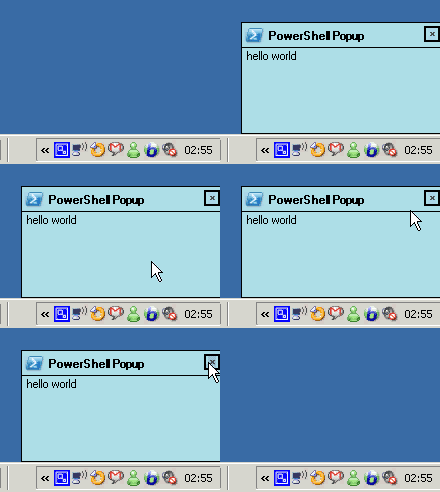
static


With animation

New-Popup.ps1 -slide -message "hello world" -title "PowerShell Popup"

The dialog is sliding, no close button, it waits for a specified number of seconds based on the $wait parameter and then closes it self. Script execution is halted until the form is closed.
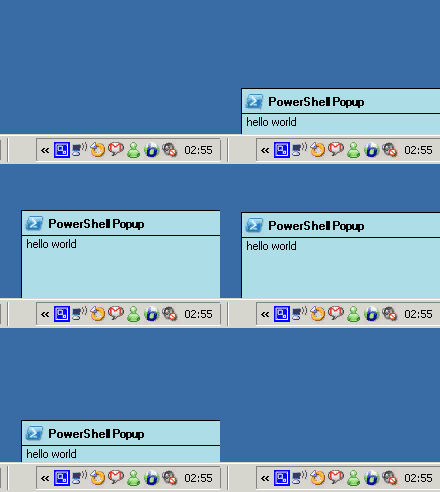
 

 slide


The script can be also downloaded here.


###################################
## New-Popup.ps1
##
## Messenger like popup dialog
##
## Usage:
## New-Popup.ps1
## New-Popup.ps1 -slide -message "hello world" -title "PowerShell Popup"


param(
    [int]$formWidth=200, 
    [int]$formHeight=110,
    [string]$title="Your title here",
    [string]$message="Your message here",
    [int]$wait=4,
    [switch]$slide
)

[void][reflection.assembly]::LoadWithPartialName("System.Windows.Forms")

###############################
# extract powershell icon if doesn't exist
$icon = "$env:temp\posh.ico"
if( !(test-path -pathType leaf $icon)){
    [System.Drawing.Icon]::ExtractAssociatedIcon((get-process -id $pid).path).ToBitmap().Save($icon)
}

###############################
# Create the form
$form = new-object System.Windows.Forms.Form
$form.ClientSize = new-object System.Drawing.Size($formWidth,$formHeight)
$form.BackColor = [System.Drawing.Color]::LightBlue
$form.ControlBox = $false
$form.ShowInTaskbar = $false
$form.FormBorderStyle = [System.Windows.Forms.FormBorderStyle]::FixedSingle
$form.topMost=$true

# initial form position
$screen = [System.Windows.Forms.Screen]::PrimaryScreen
$form.StartPosition = [System.Windows.Forms.FormStartPosition]::Manual

if($slide){
    $top = $screen.WorkingArea.height + $form.height
    $left = $screen.WorkingArea.width - $form.width
    $form.Location = new-object System.Drawing.Point($left,$top)
} else {
    $top = $screen.WorkingArea.height - $form.height
    $left = $screen.WorkingArea.width - $form.width
    $form.Location = new-object System.Drawing.Point($left,$top)
}

###############################
## pictureBox for icon 
$pictureBox = new-object System.Windows.Forms.PictureBox 
$pictureBox.Location = new-object System.Drawing.Point(2,2)
$pictureBox.Size = new-object System.Drawing.Size(20,20)
$pictureBox.TabStop = $false
$pictureBox.SizeMode = [System.Windows.Forms.PictureBoxSizeMode]::StretchImage
$pictureBox.Load($icon)


###############################
## create textbox to display the  message
$textbox = new-object System.Windows.Forms.TextBox
$textbox.Text = $message
$textbox.BackColor = $form.BackColor
$textbox.Location = new-object System.Drawing.Point(4,26)
$textbox.Multiline = $true
$textbox.TabStop = $false
$textbox.BorderStyle = [System.Windows.Forms.BorderStyle]::None
$textbox.Size = new-object System.Drawing.Size(192,77)
$textbox.Cursor = [System.Windows.Forms.Cursors]::Default
$textbox.HideSelection = $false


###############################
## Create 'Close' button, when clicked hide and dispose the form
$button = new-object system.windows.forms.button 
$button.Font = new-object System.Drawing.Font("Webdings",5)
$button.Location = new-object System.Drawing.Point(182,3)
$button.Size = new-object System.Drawing.Size(16,16)
$button.Text = [char]114
$button.FlatStyle = [System.Windows.Forms.FlatStyle]::Flat
$button.Add_Click({ $form.hide(); $form.dispose() })
if($slide) {$button.visible=$false}


###############################
## Create a label, for title text
$label = new-object System.Windows.Forms.Label
$label.Font = new-object System.Drawing.Font("Microsoft Sans Serif",8,[System.Drawing.FontStyle]::Bold)
$label.TextAlign = [System.Drawing.ContentAlignment]::MiddleLeft
$label.Text = $title
$label.Location = new-object System.Drawing.Point(24,3)
$label.Size = new-object System.Drawing.Size(174, 20)


###############################
## Create a timer to slide the form
$timer = new-object System.Windows.Forms.Timer
$timer.Enabled=$false
$timer.Interval=10
$timer.tag="up"
$timer.add_tick({

    if(!$slide){return}

    if($timer.tag -eq "up"){
        $timer.enabled=$true
        $form.top-=2
        if($form.top -le ($screen.WorkingArea.height - $form.height)){
            #$timer.enabled=$false
            $timer.tag="down"
            start-sleep $wait
        }
    } else {

        $form.top+=2
        if($form.top -eq ($screen.WorkingArea.height + $form.height)){
            $timer.enabled=$false
            $form.dispose()
        }
    }
})


## add form event handlers
$form.add_shown({
    $form.Activate()
    (new-Object System.Media.SoundPlayer "$env:windir\Media\notify.wav").play()
    $timer.enabled=$true
})

## draw seperator line 
$form.add_paint({    
    $gfx = $form.CreateGraphics()        
    $pen = new-object System.Drawing.Pen([System.Drawing.Color]::Black)
    $gfx.drawLine($pen,0,24,$form.width,24)      
    $pen.dispose()
    $gfx.dispose()
})


###############################
## add controls to the form
## hide close button if form is not sliding

if($slide){
    $form.Controls.AddRange(@($label,$textbox,$pictureBox))
} else {
    $form.Controls.AddRange(@($button,$label,$textbox,$pictureBox))
}

###############################
## show the form
[void]$form.showdialog()

Thursday, January 31, 2008

Free GP PowerShell cmdlets


SDM Software provides FREE products for managing Windows Group Policy with Windows PowerShell.

SDM Group Policy Refresh Cmdlet 1.0, lets you trigger remote Group Policy refreshes on Windows systems running Windows 2000 and above.

SDM GPMC PowerShell Cmdlets 1.0 is a set of 9 PowerShell cmdlets that wrap the functionality around managing Group Policy Objects available within the GPMC and lets you perform GPO management tasks like creating and deleting GPOs, linking them to sites, domains and OUs, modifying GPO security and backing


You can download both products here.

Wednesday, January 30, 2008

TechNet Spotlight videos


New videos on TechNet Spotlight!


Advanced Windows PowerShell Scripting session (Jeffrey Snover)

This session provides a deep drill into advanced Windows PowerShell scripting techniques. Windows PowerShell provides an incredibly large dynamic range of capabilities from simple to very sophisticated. This session is for those people that have mastered the simple range and want to explore the high end techniques and mechanisms. This session will include a preview and demonstration of features from the next release of PowerShell including remoting and many other wonderful features.


Microsoft Exchange 2007 Service Pack 1 Tips and Tricks (Scott Schnoll)

This session will provide information on how to get more out of Exchange Server 2007 and Exchange Server 2007 SP1. It includes tips and tricks on configuring Exchange, managing Exchange, using the Exchange Management Shell, and more.

Thursday, January 24, 2008

Validating password strength


A question asked in the PowerShell news group:

I have a script that takes user input of a desired username\password for a local account to be created. However, the complex password policy is in effect so a simple password will not work. So if a simple password is put in, it won't ask again for a password, it will just fail and continue. How do i get the PS script to check if it was successful or if it failed and if it failed, prompt again for the information?


I ended up converting a VB.NET code from MSDN. Here's the PowerShell version:

 
Function Validate-Password{

    param(
        [string]$pwd = $(throw "Please specify password"),
        [int]$minLength=8,
        [int]$numUpper = 2,
        [int]$numLower = 2,
        [int]$numNumbers = 2, 
        [int]$numSpecial = 2
    )


    $upper = [regex]"[A-Z]"
    $lower = [regex]"[a-z]"
    $number = [regex]"[0-9]"
    #Special is "none of the above"
    $special = [regex]"[^a-zA-Z0-9]"

    # Check the length.
    if($pwd.length -lt $minLength) {$false; return}
# Check for minimum number of occurrences. if($upper.Matches($pwd).Count -lt $numUpper ) {$false; return} if($lower.Matches($pwd).Count -lt $numLower ) {$false; return} if($number.Matches($pwd).Count -lt $numNumbers ) {$false; return} if($special.Matches($pwd).Count -lt $numSpecial ) {$false; return} # Passed all checks. $true } # Demonstrate that "Password" is not complex. PS > $password = "Password" PS > "'{0}'is complex: {1}" -f $password,(Validate-Password $password)
'Z9f%a>2kQ' is complex: False
 
# Demonstrate that "Password" is complex. 
PS > $password = "Z9f%a>2kQ"
PS > "'{0}' is complex: {1}" -f $password,(Validate-Password $password)
'Z9f%a>2kQ' is complex: True
 

When writing this post I got an answer back that the code is too complicated. At first, it may look intimidating.. but this function lets you control how complex you want the password to be. You just need to specify the parameters, they are all self explanatory. All parameters are optional except for password :

# call it with default parameters
if (Validate-Password -pwd "password") {"password is valid"}


The following (one line) validates a password that:

1. Contains at list 10 characters
2. Contains at list 2 upper case characters (default)
3. Contains at list 2 lower case characters (default)
4. Containa at list 3 numbers
5. Contains at list 3 special cahracters


if (Validate-Password -pwd "password" -minLength 10 -numUpper 2 -numLower 2 -numNumbers 3 -numSpecial 3) {"password is valid"}